Your Google Analytics 4 dashboard shows 35 conversions this month. Your sales team, however, remembers receiving only 18 enquiries.
Something doesn’t add up.
Incorrect lead tracking can make marketing campaigns look more successful than they actually are. A button click might be counted as a conversion, a single form submission might trigger multiple events, or successful enquiries might never reach Analytics.
The good news is that you can test your GA4 lead tracking without rebuilding your entire analytics setup.
Know What You’re Actually Measuring
Before opening Google Analytics, understand the difference between these interactions:
- Someone clicks the Submit button.
- Someone successfully submits a form.
- Your business receives a new enquiry.
These are three different things.
For lead generation, Google recommends the generate_lead event when someone submits a form or requests information.
You might also encounter form_submit, which can be collected through GA4 Enhanced Measurement when its conditions are met.
However, neither event name should automatically be treated as proof that a qualified business enquiry was received.
Your tracking should reflect the actual successful submission.
Step 1: Identify Your Lead Event
Open Google Analytics 4 and navigate to:
Reports → Engagement → Events
Review the events currently being collected.
Look for:
- generate_lead
- form_submit
- Any custom event names associated with your contact forms.
If you cannot identify a clear lead event, check your Google Tag Manager configuration.
Open your GTM container and look for Google Analytics: GA4 Event tags.
Identify which event is configured to fire when someone successfully submits a form.
Pay particular attention to its trigger.
Is it triggered by a successful form submission, a button click or a thank-you page view?
That distinction matters because a button click doesn’t guarantee that a lead was generated.
Step 2: Open GA4 DebugView
Now you need to observe what happens when you interact with your website.
Open Google Tag Manager and select Preview.
Enter your website URL and connect through Google Tag Assistant.
This enables debug mode for your testing session.
Next, open GA4 and navigate to:
Admin → Data display → DebugView
You should be able to identify your testing device and monitor events as they arrive.
If nothing appears, check that:
- Your GA4 tag is loading correctly.
- Debug mode is enabled.
- The correct GA4 property is connected.
- Your consent settings allow analytics collection for the test.
Remember that consent restrictions can prevent events from appearing in DebugView.
Step 3: Submit a Real Test Form
Visit your website and complete an actual contact form.
Use an email address you control and include a recognisable test message.
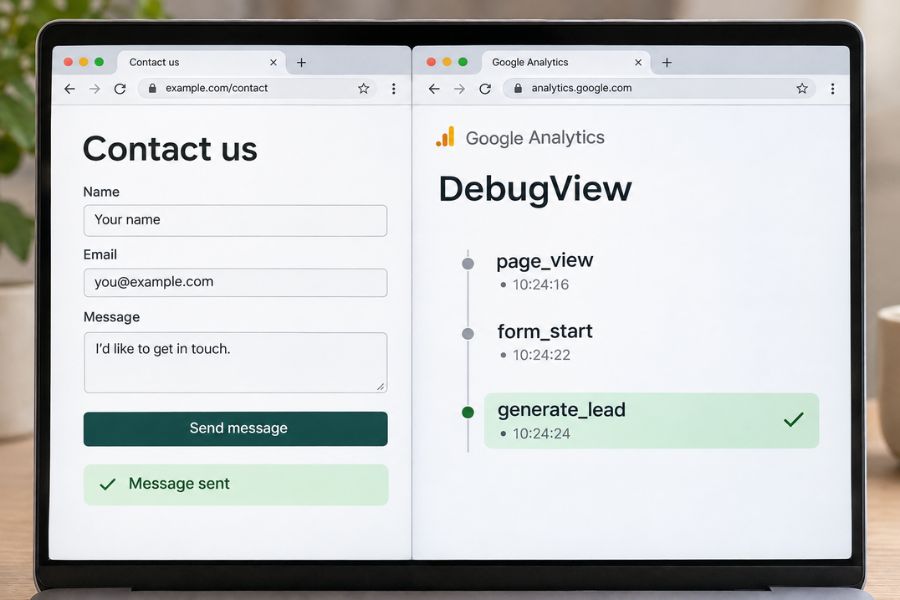
Submit the form and return to DebugView.
Look for the event configured to represent a successful lead.
If you’re using the recommended generate_lead event, it should appear after the successful submission.
Check whether the event arrives once and whether any expected parameters are included.
If the form displays a success message but no event appears, investigate the trigger and tag configuration in Google Tag Manager.
Also confirm that the enquiry actually reaches the configured inbox or submission storage.
Step 4: Test an Invalid Submission
This is one of the most important checks.
Return to your contact form and attempt another submission without completing a required field.
The website should display a validation message and prevent the unsuccessful submission.
Now check DebugView.
A successful lead event should not fire simply because someone clicked Submit.
If generate_lead appears despite the form failing, your tracking trigger probably needs attention.
For example, a GTM trigger based only on a button click could count unsuccessful attempts as leads.
The event should be tied to a reliable success condition.
Step 5: Check for Duplicate Events
A common tracking problem occurs when the same interaction is measured through multiple implementations.
For example:
- A GA4 event tag in Google Tag Manager.
- A separate event configured directly in the website.
- Another tracking script installed through a WordPress plugin.
If all three respond to the same submission, Analytics may record multiple events for one enquiry.
Repeat your test submission and examine the event sequence.
If the same lead event appears several times, investigate all tracking implementations before removing anything.
Also remember that multiple events in DebugView do not necessarily mean every event is a duplicate. Examine their names, timestamps and triggering conditions.
What to Do if Tracking Isn’t Working
If your tests reveal missing or duplicate events, investigate the implementation rather than changing reporting settings to hide the problem.
Check your Google Tag Manager tags, triggers, consent configuration and GA4 measurement ID.
Once tracking is corrected, test the complete process again.
For businesses running paid campaigns, reliable measurement is particularly important when evaluating Google Ads performance.
Your website also needs to capture enquiries consistently, which is why proper website development should include analytics and conversion tracking as part of the setup.
Your GA4 Lead Tracking Checklist
Before considering your setup reliable, confirm the following:
- A clearly defined successful lead event exists.
- A real test submission triggers the expected event.
- An unsuccessful submission does not trigger a lead.
- One submission doesn’t generate duplicate lead events.
- Consent settings are correctly accounted for.
- The enquiry actually reaches your business.
- GA4 reports the expected event.
FAQ
What is the recommended GA4 event for lead generation?
Google recommends generate_lead when someone submits a form or requests information. You can use additional events to measure subsequent stages of the lead generation process.
How long does GA4 take to show a new event?
DebugView can display events in near real time when debug mode is correctly enabled. Standard reports may take longer to process and display the same information.
Should every form submission count as a conversion?
Only successful submissions that represent the action you want to measure should count as leads. You may also want to distinguish newsletter subscriptions, general enquiries and commercial enquiries.
What to Do Next
Take ten minutes to test one of your website’s most important contact forms.
If your analytics report more conversions than your business actually receives, investigate the difference before making further marketing decisions.
At Onum Group, we help businesses connect their websites, analytics and advertising campaigns so they can make decisions using more reliable data.
Let’s talk about your tracking and marketing setup.
Sources
Google Analytics, Recommended Events:
https://support.google.com/analytics/answer/9267735
Google Analytics, Monitor Events in DebugView:
https://support.google.com/analytics/answer/7201382
Google Analytics for Developers, Set Up Events:
https://developers.google.com/analytics/devguides/collection/ga4/events
Google Analytics for Developers, Verify and Troubleshoot Your Setup:
https://developers.google.com/analytics/devguides/collection/ga4/troubleshoot